5 Best Data Recovery Software Tools in 2026
Lost files are stressful because every extra write to the drive can make recovery harder. Finding the best data recovery software is less about one universal winner and more about matching the tool to the failure. The five options below cover deleted files, formatted volumes, RAID, and damaged file systems.
Table of Contents:
- What Recovery Software Can Actually Do
- Five Data Recovery Tools Worth Considering in 2026
- Disk Drill
- R-Studio
- DMDE
- UFS Explorer Professional Recovery
- PhotoRec and TestDisk
- Do Not Pay for a Scan Result You Have Not Checked
- How to Spot a Rebadged Data Recovery Tool
- Sometimes the Correct Recovery Tool Is No Software at All
- Data Recovery FAQ
Before You Scan Anything: What Recovery Software Can Actually Do
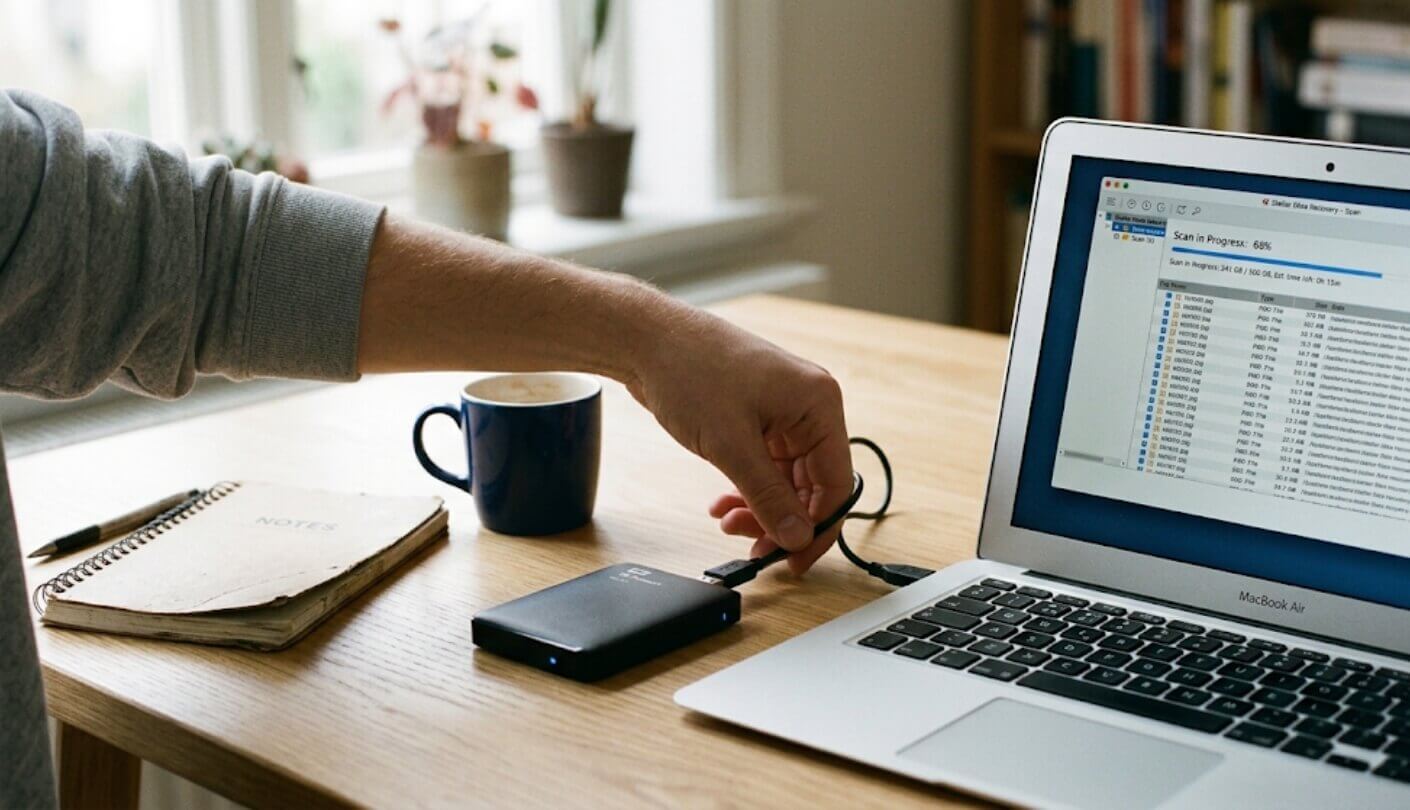
A deleted file is often less deleted than it looks. On an HDD, USB drive, or memory card, the file system can remove the reference to a file while leaving its data in place until something else writes over those sectors. Recovery software either rebuilds what it can from surviving file-system records or searches the disk for recognizable file signatures.
That recovery window can close quickly. Copy new files to the same drive and you may overwrite the old ones.
SSDs add another complication. On internal SATA and NVMe drives, TRIM is usually active, so deleted blocks may be cleared before recovery software can read them. External SSDs are less predictable because TRIM only works if the enclosure, USB bridge and operating system pass the command through correctly. So "SSD" does not automatically mean "unrecoverable." The key question is whether TRIM actually reached the drive.
If you are dealing with lost hard drive data, the first priority is not finding the fanciest scanner, but avoiding more writes to the source.
- Stop using the affected drive. Do not install recovery software on it or copy new files to it.
- Recover files to a different disk.
- If the drive is unstable, image it first. Work from the copy instead of asking a failing disk to survive several full scans.
For a recently deleted folder or a quick-formatted USB drive, a general-purpose disk recovery software package is usually enough. RAID, NAS, missing partitions, and unusual file systems are where the more technical tools start earning their keep.
Five Data Recovery Tools Worth Considering in 2026
We picked five established tools that are still maintained and that solve meaningfully different problems.
Note: This is not a scorecard where fifth place means bad software. Think of it as five doors into the same room: one is easier to open, one gives you more manual control, one costs less, one is built around RAID, and one is completely open source.
| Tool | Platforms | Free or trial use | Starting paid price | Good fit for |
| Disk Drill | Windows, macOS | Windows: up to 100 MB recovery, unlimited scan and preview | $89/year | Easy recovery with minimal setup |
| R-Studio | Windows, macOS, Linux | Demo: files up to 1 MB, larger supported files can be previewed | $79.99 | Recovery with detailed manual scan control |
| DMDE | Windows, macOS, Linux | Up to 4,000 files from one selected directory per request | $20/year | Low-cost technical recovery |
| UFS Explorer RAID Recovery | Windows, macOS, Linux | Trial: scanning, RAID assembly and preview | $149.95 | RAID, NAS and specialised file systems |
| PhotoRec + TestDisk | Windows, macOS, Linux | Free, no recovery cap | Free | Free open-source recovery |
Pricing checked in September 2026, vendor pricing can change.
Disk Drill: The Easy Starting Point for General Recovery
Disk Dril logo. Source: Cleverfiles
Disk Drill is the easy answer when the question is still vague: 'I lost files, what do I try first?' The Windows and macOS versions combine file-system scanning, signature recovery, previews, recovery-chance information, and disk imaging in one interface. In most cases, you select the drive and start the scan rather than configuring scan regions, file systems, or recovery methods first.
Disk Drill lets you scan and open supported files before paying, which makes the trial useful even when the Windows free recovery allowance of 100 MB is too small for the final job.
It also handles the common cross-platform mix well: NTFS, FAT/exFAT, APFS, HFS+, EXT-family file systems, plus RAW or unmountable volumes where signature scanning may be the only practical route.
Disk Drill also has a more specialised option for footage from cameras and drones. Advanced Camera Recovery is designed for devices that write large video files in fragments across a memory card. After deletion or formatting, ordinary file carving may find the individual pieces without knowing how they fit together, which can leave an apparently recovered MP4 or MOV that will not play correctly. ACR analyses those fragments and attempts to reconstruct them in the correct sequence, with support for devices including GoPro, DJI, Insta360, Sony, Canon, Nikon, Panasonic and others.
Good fit: Users who want to start recovery without manually configuring scan parameters, plus photographers and videographers dealing with fragmented footage from supported cameras and drones.
Worth knowing: The Windows free version recovers up to 100 MB. Disk Drill PRO currently costs $89 per year or $149 for a lifetime license. A single Disk Drill PRO license covers both Windows and macOS, with up to three device activations, so moving between a PC and a Mac does not require buying the software twice.
If you want to see the flow before installing it, some reviewers have published full walkthroughs of the scan and recovery process.
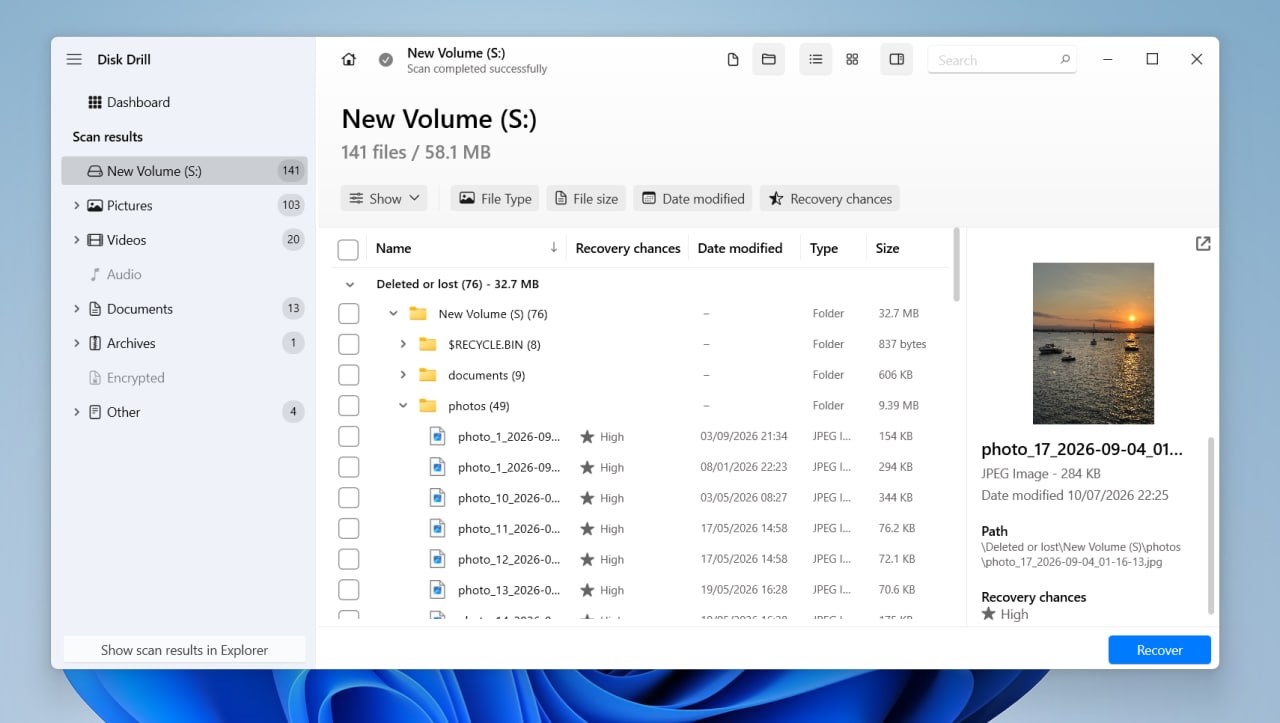
Disk Drill lets you inspect found files and preview their contents before deciding what to recover. Source: gagadget.com
R-Studio: More Control When the Disk Layout Is Part of the Problem
R-Studio logo. Source: R-Studio
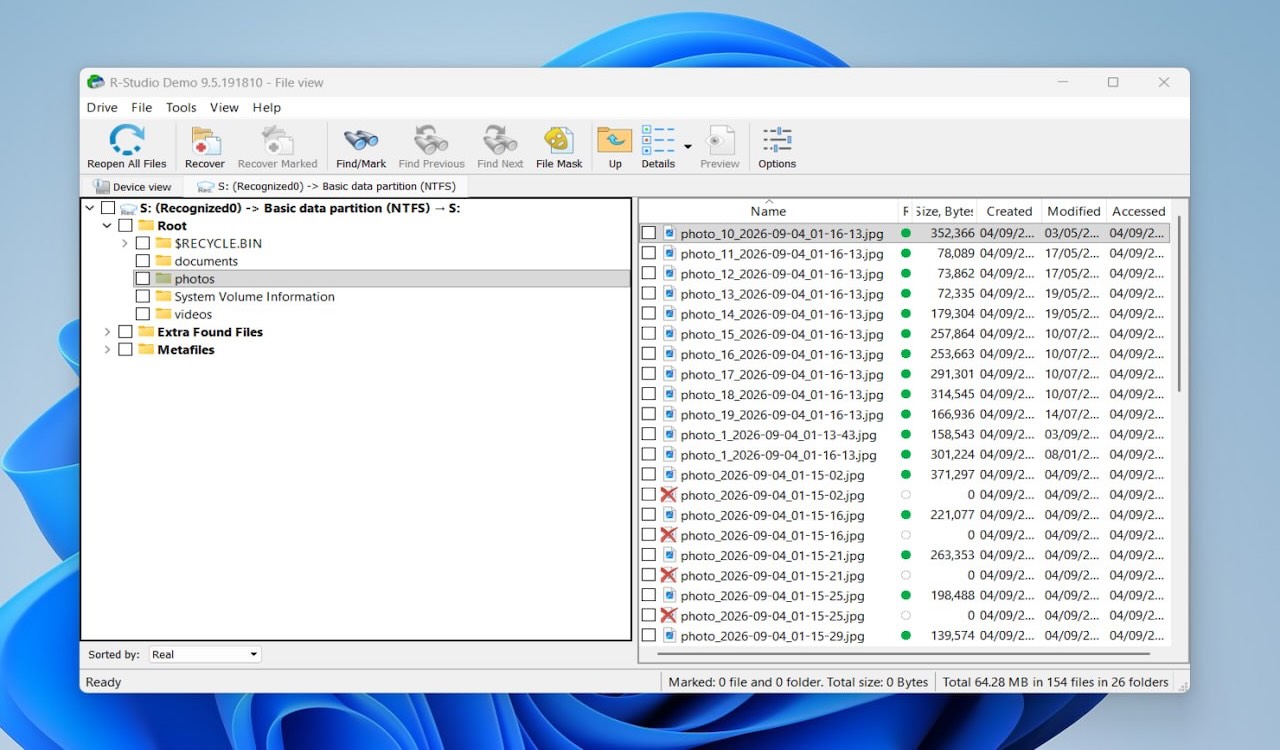
R-Studio takes a more hands-on approach. The standard version covers much of the same core territory as other full-featured recovery tools, including file-system scanning, raw file search, disk imaging, file previews, and recovery from recognised or damaged partitions. The main difference is how much control it exposes before and during the scan.
You can define exactly which part of a disk to scan, specify the file systems to search for, and customise the list of known file signatures. That can be useful when you already understand the storage layout or want to narrow a scan instead of letting the software choose the recovery strategy automatically. R-Studio also exposes lower-level disk information and includes tools for inspecting storage structures in more detail.
More advanced capabilities, particularly full network recovery and some professional imaging and hardware-assisted workflows, belong to the more expensive Corporate and Technician editions rather than the standard $79.99 license.
Good fit: Users who want more manual control over scan regions, file systems, and file signatures, and who are comfortable making those decisions themselves.
Worth knowing: The demo can recover files up to 1 MB and preview supported larger files. R-Studio for Windows currently starts at $79.99.
DMDE: A Lot of Low-Level Access for Not Much Money
DMDE logo. Source: DMDE
DMDE is small, portable, and unusually capable for its price. It combines ordinary file recovery with partition search, disk imaging, RAID construction, and a disk editor, so it can cover jobs that would normally push you toward much more expensive software.
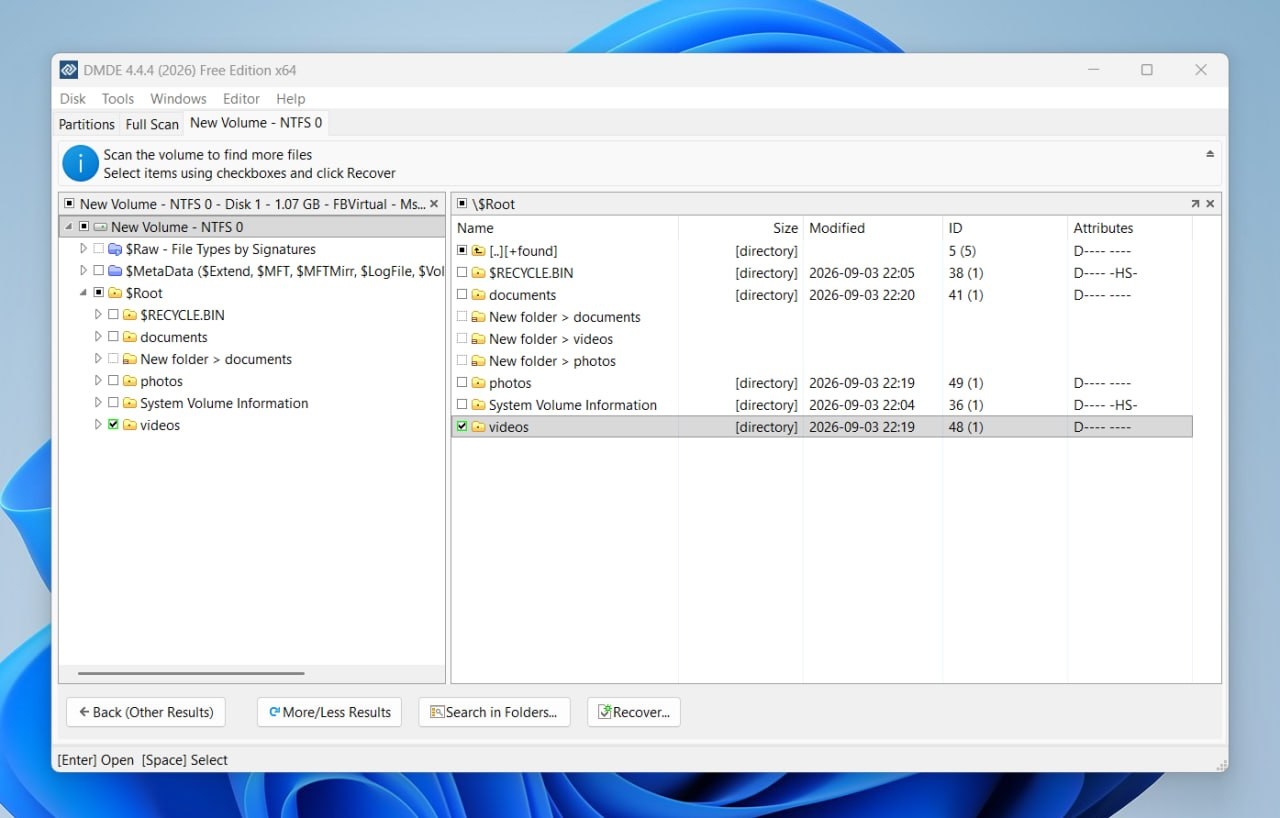
The free edition is particularly useful. It can recover up to 4,000 files from one selected directory per request, and you can repeat the operation. That is enough to test whether the folder you care about is actually recoverable before spending anything.
The interface is dense because DMDE assumes you may want to look at the storage structure itself, not just click 'Deep Scan' and wait. For someone comfortable with partitions and volumes, that is part of the appeal. For a one-off job, it simply asks for more attention than a guided recovery app.
Good fit: Technical users, partition recovery, portable recovery work, and anyone looking for a capable free data recovery software option with inexpensive paid licenses.
Worth knowing: DMDE Express costs $20 for one year. The Standard edition is $48 for a perpetual license.
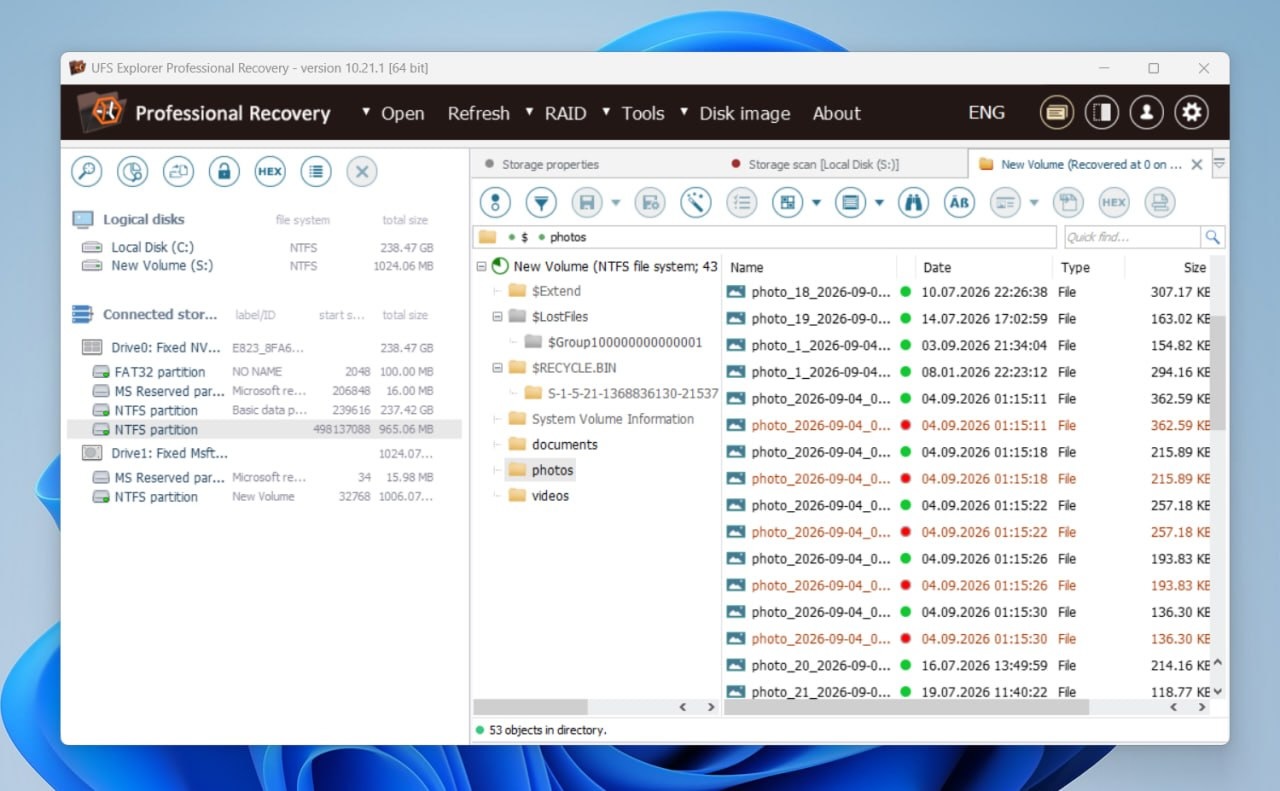
UFS Explorer Professional Recovery: For Specialist Recovery Work
UFS Explorer logo. Source: UFS Explorer
UFS Explorer Professional Recovery sits at the technical end of this selection. It covers ordinary single-disk recovery, but its real value is in cases involving more complex storage: RAID arrays, encrypted volumes, virtual machine file systems, forensic disk images, and less common file systems that consumer-oriented tools may not encounter often.
The software gives the user detailed control over how storage is interpreted. It supports common Windows, macOS and Linux file systems alongside VMFS, ZFS, XFS, Btrfs and others, and includes a full RAID engine, advanced disk imaging, encryption support and a built-in hex editor. That makes it less of a "click scan and wait" utility and more of a professional recovery workspace.
For a deleted folder on a healthy external drive, that level of control is probably unnecessary. It makes more sense for data recovery specialists, forensic work, encrypted storage, complex RAID cases or situations where the storage structure itself needs to be analysed before recovery begins.
Good fit: Professional data recovery, RAID and NAS, encrypted volumes, disk images, VMFS and technically complex storage.
Worth knowing: The free trial allows full scanning, decryption and imaging, but file saving is limited to 768 KB per file. A perpetual Professional Recovery license starts at $699.95 and covers Windows, macOS and Linux.
PhotoRec and TestDisk: The Free Open-Source Route

TestDisk logo. Source: cgsecurity
PhotoRec and TestDisk come in the same free download, but they solve different problems. TestDisk focuses on partitions, boot sectors, and file-system recovery, while PhotoRec ignores much of the file-system metadata and recovers files by looking for known signatures. This makes PhotoRec useful when the original directory structure is too damaged to rely on.
Both tools are portable, available for Windows, macOS, and Linux, and have no recovery quota. They are also useful from removable media because you do not need to install them on the affected drive.
PhotoRec itself uses a text-based interface similar to TestDisk. The same download archive also includes QPhotoRec, a graphical version that exposes the main PhotoRec options in a more familiar Windows interface. You can select the source disk and partition, choose which file formats to search for, set a destination, and start recovery without working through the terminal-style menus.
The trade-off remains the same whichever interface you use. Signature-based recovery generally cannot restore the original filenames and folder structure, so recovered files may appear with generated names inside recovery directories. That matters less when the goal is simply to rescue photos or documents from a badly damaged volume, but it can create a lot of sorting afterwards.
Good fit: Free recovery when the file system is badly damaged, or when recovering the file contents matters more than preserving the original names and folder structure.
Worth knowing: PhotoRec and TestDisk are free and open source under the GNU GPL. On Windows, the archive includes both the standard command-line-style PhotoRec and its graphical companion, QPhotoRec, shown below.
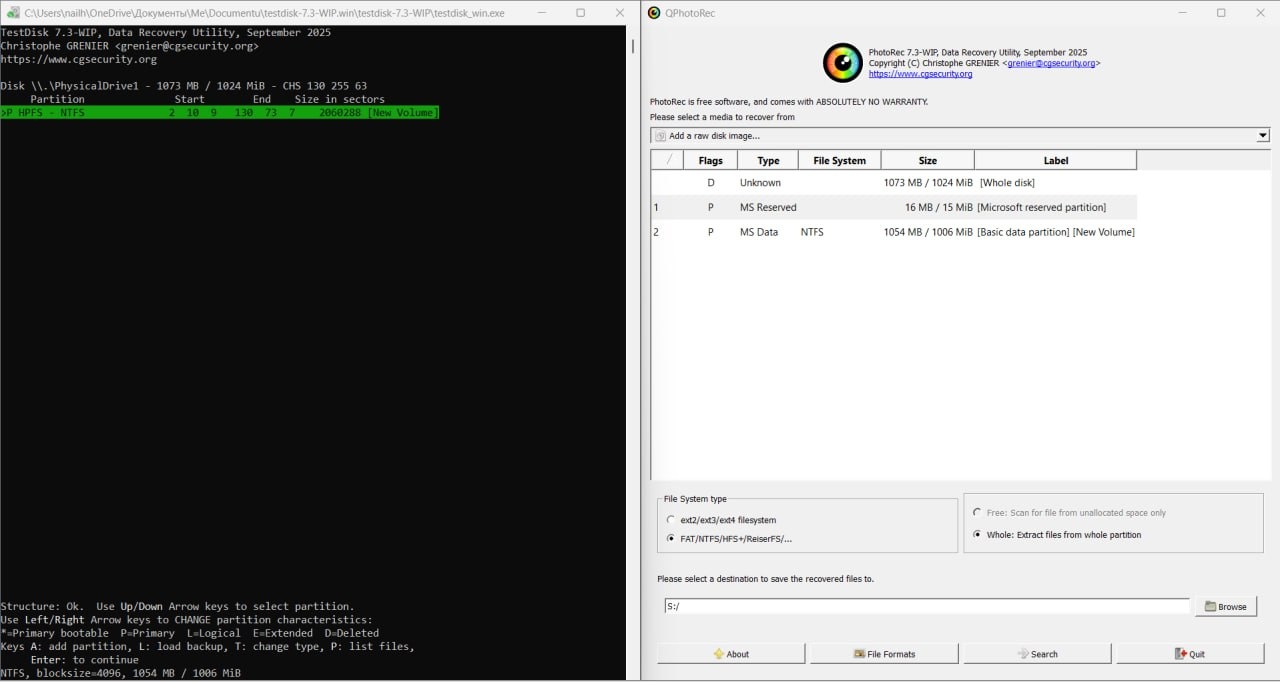
TestDisk uses a text-based interface for partition and file-system recovery, while QPhotoRec provides a graphical interface for PhotoRec's signature-based file recovery. Source: gagadget.com
Do Not Pay for a Scan Result You Have Not Checked
Recovery apps love big numbers. '48,213 files found' sounds reassuring until most of them turn out to be thumbnails, fragments, or files that no longer open. Before paying for file recovery software, look past the count and inspect what the scan actually found.
Start with previews. Open several large files from different folders: photos, PDFs, Office documents, and video if the app supports it. Large files are useful because partial corruption is easier to spot. If files from several parts of the disk preview correctly, that tells you far more than a progress bar or a headline total.
Then look at names and folders. A file called Q2-budget.xlsx inside Finance\2026 means the scanner recovered useful file-system metadata. A folder full of names such as f0043212.jpg usually means signature carving. The content may still be fine, but the original organization is probably gone.
This is one reason why you could start with Disk Drill for a general recovery job: you can scan, browse, and preview the result before deciding whether the full recovery is worth paying for. The same principle applies to any paid file recovery tool. See the files first, buy second.
How to Spot a Rebadged Data Recovery Tool
Data recovery is not a category where you want to discover that the engine has barely changed since an older version of Windows. Before installing an unfamiliar app, check the date of its latest release, look for a real changelog, and see whether the developer still updates documentation and support pages.
Be cautious with fixed claims such as '99% recovery rate' when there is no test method behind the number. Recovery success depends on what happened to the storage, how much was overwritten, the file system, and the condition of the device. One percentage cannot describe all of that.
Independent user reports can fill in some of the gaps. Data recovery groups on social media are useful places to see which tools technicians recognize and which failure modes keep coming up. Treat individual posts as experience reports, not laboratory benchmarks.
Sometimes the Correct Recovery Tool Is No Software at All
A clicking hard drive is not a software problem. Neither is a disk that repeatedly spins up and down. Every full scan adds more work to hardware that may already be close to failing.
Stop if the drive clicks or beeps, disappears partway through a scan, reports the wrong capacity, or shows a climbing reallocated-sector count in S.M.A.R.T. The useful move then is a clone: image what can still be read in one pass, then work on the copy.
Memory cards are slightly different because a missing card can also be a connection problem. Before assuming the flash itself has died, check the reader, USB port, driver, and drive-letter assignment. There are several mundane reasons for memory cards that cannot be detected. Do those checks without formatting the card.
If the files are worth more than the cost of professional recovery, stop experimenting early.
Data Recovery FAQ

Does data recovery software work on SSDs?
Sometimes. If TRIM and garbage collection have not cleared the deleted blocks, recovery may still work. Once those blocks have been erased, normal software recovery is usually no longer possible. Stop using the SSD as soon as you notice the loss.
Is free data recovery software safe to use?
Yes, provided it comes from a reputable developer and you use it correctly. Run it from another drive, avoid repair operations on the source, and save recovered files somewhere else. PhotoRec/TestDisk and DMDE are useful free options for different kinds of jobs.
Can files be recovered after formatting a drive?
Often after a quick format, especially if little or no new data has been written afterwards. A full overwrite, later writes, or SSD TRIM can remove the data the recovery tool would otherwise use.
Why do recovered files open as blank or corrupted?
Usually because part of the file was overwritten, the file was fragmented and only some pieces were found, or raw carving identified the signature without reconstructing the complete file. Previewing before recovery is the easiest way to catch this early.
How long does a deep scan take?
Anywhere from minutes to many hours. Capacity, connection speed, the number of bad sectors, scan method, and storage type all matter. A healthy 64 GB memory card and a failing 12 TB hard drive are not comparable jobs.
Which Data Recovery Tool Should You Start With?
For a normal deleted-file, formatted-drive, or mixed recovery job, Disk Drill is the one to try first. It covers the common cases without making you choose a recovery method up front, and the scan-plus-preview workflow lets you check the result before paying.
R-Studio and DMDE make more sense when you want deeper manual control. UFS Explorer is the specialist choice here for RAID and NAS. PhotoRec with TestDisk is hard to argue with when the budget is zero and preserving filenames matters less than getting the file content back. And if the disk is clicking, disappearing, or physically failing, close the software and stop there.

Jim's our tech geek with a mission since February 2023. From movies to video projectors, he knows his stuff and aims to make tech work for you. When he's not geeking out, he's there to guide you through making savvy decisions.


